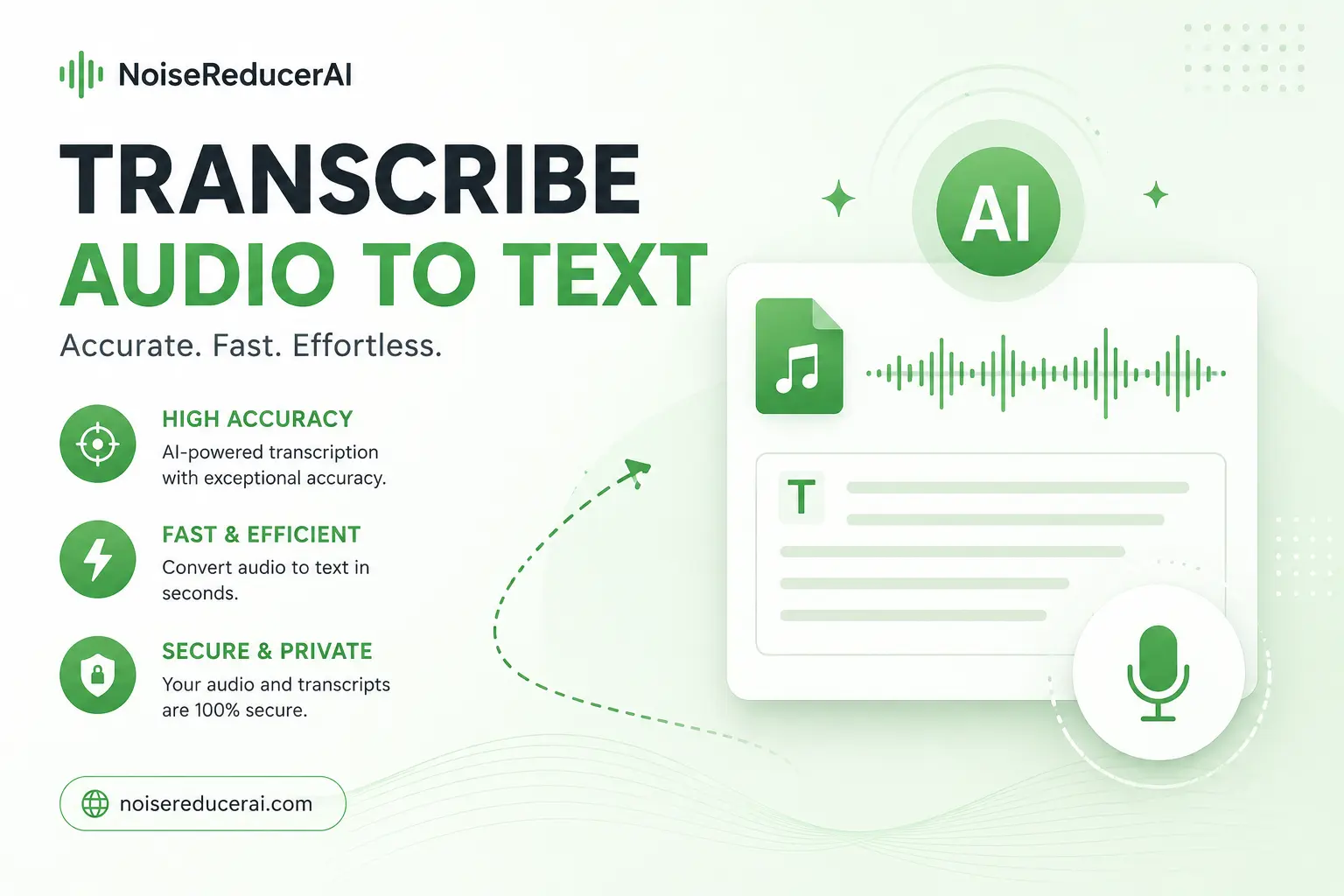
How to Transcribe Audio to Text Accurately (Best AI Tools 2026)
You finished the recording. The interview, the podcast, the lecture, the meeting. Now you need words on a page — fast.
AI transcription has come a long way. The best tools in 2026 hit 95–98% accuracy on clean audio. Good enough that you barely need to edit. But there’s a catch most guides skip over: the AI is only as accurate as the audio you give it. Feed it a messy recording and that 98% drops fast — sometimes below 80%.
This guide covers how to transcribe accurately, what actually affects the result, which tools are worth using, and — most importantly — how to prepare your audio so the AI gets every word right.
Why Transcription Accuracy Varies So Much
Every tool advertises impressive accuracy numbers. The problem is those numbers come from tests on clean, studio-quality audio. One speaker, no background noise, decent microphone, normal speaking pace.
Your recording probably isn’t that. Real recordings have AC hum, keyboard clicks, distant traffic, a guest who speaks quietly, or two people talking at once. Those conditions hit accuracy hard.
Here’s what the numbers actually look like:
| Recording Condition | Typical Accuracy | Editing Time per Hour |
|---|---|---|
| Clean single speaker, quiet room | 95–98% | Minimal — quick scan only |
| Light background noise (AC, fan) | 88–94% | 10–15 minutes |
| Multiple speakers, some overlap | 80–88% | 30–45 minutes |
| Heavy background noise or music | 60–80% | Substantial — often faster to redo |
| Phone recording, distant mic | 70–85% | Heavy editing required |
The gap between 98% and 80% sounds small. It isn’t. On a one-hour recording, 80% accuracy means roughly 1,500 errors. 98% means about 240. That’s the difference between a quick proofread and a full re-transcription.
The fastest way to improve your results isn’t switching to a more expensive tool. It’s cleaning the audio first.
Step One: Clean Your Audio Before You Transcribe
This is the step most people skip. They upload the raw recording straight to a transcription tool and wonder why the result is full of errors.
AI transcription models are speech recognition engines. They listen to audio and try to figure out the words. When background noise is competing with the voice, the model gets confused — it picks the wrong word, mishears a name, or drops a whole sentence.
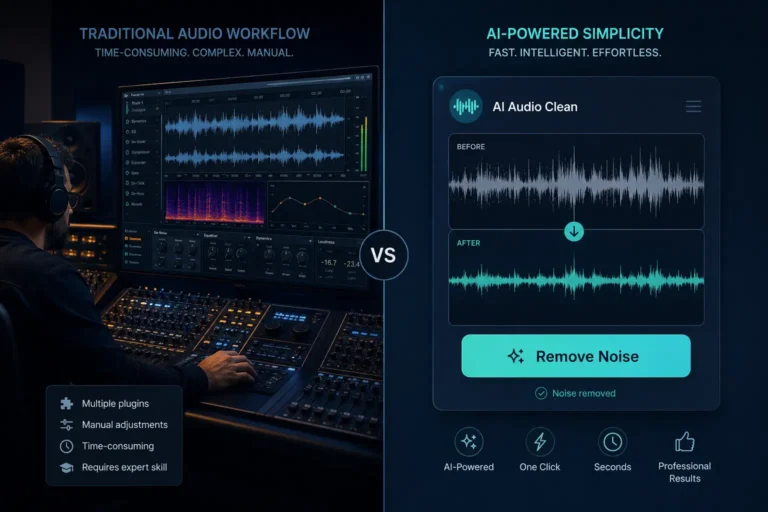
Run the audio through a noise reducer first. It takes 60 seconds. The transcription tool then has a much cleaner signal to work with. Accuracy jumps. Editing time drops.
What to Remove Before Transcribing
- Fan noise, AC hum, HVAC — the most common accuracy killers
- Echo and room reverb — if words sound doubled or washy, AI struggles
- Background music — the model tries to transcribe the lyrics as speech
- Keyboard clicks and mouse noise — especially bad in screen and call recordings
- Traffic and street noise from outdoor recordings
- Low-level hiss from cheap or built-in microphones
How to Clean Audio with Noise Reducer AI
- Upload your audio or video file — MP3, WAV, MP4, MOV all work
- Set denoise strength to 70–85%. You want the noise gone but the natural voice texture kept
- Preview a 30-second clip. Does the voice sound clear with no hollow tone? Good.
- Download the cleaned file and upload it to your transcription tool
The whole thing takes under two minutes. On noisy audio, accuracy typically improves by 15–25 percentage points — the difference between a usable draft and a frustrating mess.
Best AI Transcription Tools in 2026
There are dozens of options. Most work fine on clean audio. The real differences show up when your recording isn’t perfect — which is exactly where most recordings live.
Otter.ai — Best for Meetings and Real-Time
Otter is the most widely used transcription tool for a reason. It connects directly to Zoom, Teams, and Google Meet, transcribes live as the call happens, and generates a shareable summary when it ends. The free tier gives 300 minutes per month — enough that most casual users never need to pay.
Accuracy on clean audio is solid. Where it gets shakier is heavy accents, fast talkers, and multiple people overlapping. Clean the audio first and Otter handles the hard stuff much better.
Descript — Best for Podcasters and Video Editors
Descript does something no other tool does quite as well: you edit your audio or video by editing the transcript. Delete a sentence from the text and the corresponding audio disappears from the recording. It’s a completely different workflow — and once you use it, going back feels slow.
For podcasters it’s the closest thing to an all-in-one tool. For journalists or researchers who just need a plain transcript, it’s more than you need.
Sonix — Best for Accuracy Across Many Languages
If accuracy is your priority — especially across multiple languages — Sonix consistently leads the field. It supports 53+ languages, holds SOC 2 Type II and HIPAA compliance, and is trusted by organizations like Google, Harvard, and ESPN.
The interface is clean. Upload a file, get a timestamped transcript with speaker labels in minutes. Priced per minute of audio rather than a flat subscription — works well for teams with variable workloads, but can get expensive for heavy daily use.
Rev — Best When Accuracy Cannot Slip
Rev offers two tiers: AI transcription at $0.25/minute (fast, good) and human transcription at $1.50/minute with a 99%+ accuracy guarantee and 24-hour turnaround.
Most people use the AI tier for regular work and switch to human for anything high-stakes — legal depositions, medical records, broadcast captions. One wrong word in a legal transcript can be a serious problem. The premium is worth it when that’s the case.
OpenAI Whisper — Best Free Option (Technical Users)
Whisper is OpenAI’s open-source model. Free, 97 languages, excellent accuracy on difficult audio — competitive with paid tools. The catch: no interface. You run it from the command line or through a third-party wrapper.
If you’re comfortable with Python or technical setup, it’s the best free transcription engine available. If you just want to click a button and get a transcript, use one of the others.
Notta — Best Free Tier for Everyday Users
Notta gives you 120 minutes of free transcription per month — no credit card, no friction. Upload a file, get a transcript with speaker labels and timestamps, export as TXT, DOCX, PDF, or SRT.
For students, researchers, or anyone who transcribes occasionally and doesn’t want to pay, Notta’s free tier covers most use cases. It supports 104 languages — more than most tools at this price point.
Tool Comparison — Which One Fits Your Use Case
| Tool | Best For | Free Tier | Languages | Accuracy (Clean Audio) |
|---|---|---|---|---|
| Otter.ai | Meetings, real-time | ✅ 300 min/month | English-first | 90–93% |
| Descript | Podcasters, video editors | ✅ Limited hours | 23 | 92–95% |
| Sonix | Multilingual, legal, research | ⚠️ 30-min trial | 53+ | Up to 99% |
| Rev (AI) | Fast turnaround, any file | ❌ Pay per minute | 36 | ~95% |
| Rev (Human) | Legal, medical, broadcast | ❌ $1.50/min | 36 | 99%+ guaranteed |
| Whisper (OpenAI) | Developers, privacy-first | ✅ Fully free | 97 | 95–97% |
| Notta | Students, casual users | ✅ 120 min/month | 104 | 88–92% |
What Affects Accuracy — And How to Fix Each One
Background Noise
The single biggest accuracy killer. AI speech recognition hears everything — the AC, traffic outside, the desk fan — and tries to figure out which parts are words. Background music is the worst offender because the model tries to transcribe the lyrics.
Fix it: Run the recording through Noise Reducer AI before uploading. Even a moderate 70% pass makes a measurable difference. On music-heavy recordings, the improvement is dramatic.
Echo and Reverb
Recording in a bare room creates echo. The voice arrives at the microphone twice — directly and reflected off the walls. AI models sometimes hear the doubled signal as two slightly different phrases layered together.
Fix it: Noise Reducer AI’s echo removal handles this in the same pass as noise reduction. No extra step needed.
Multiple Speakers and Overlapping Speech
When two people talk over each other, no AI transcribes it cleanly. The model picks one voice, loses the other, and sometimes generates words that were never said. Speaker labels also break down badly during overlaps.
Fix it: This is a recording problem, not an audio quality problem. One speaker at a time with clear pauses is the only real solution. If you already have the recording, clean up those sections manually after.
Low or Uneven Volume
A guest who speaks softly, or someone whose mic was too far away — the voice drops below the noise floor. The AI sees speech and noise at roughly equal levels and can’t separate them reliably.
Fix it: Normalize the audio before transcribing. Audacity is free and has a one-click normalize. Do this after noise reduction, not before.
Accents and Regional Dialects
AI models are trained on uneven data. A standard American or British accent gets near-perfect results. A heavy regional accent or a non-native speaker gets worse results — sometimes significantly. This is an industry-wide limitation in 2026, not unique to one tool.
Fix it: Use Whisper or Sonix — both handle accents better than most. Clean audio first, since noise compounds accent problems. For high-stakes content, human transcription is the reliable option.
File Format and Bitrate
A 128kbps MP3 has already lost audio information through compression. The model works with less data and accuracy suffers. A WAV or 320kbps MP3 gives it everything it needs.
Fix it: Use the highest quality source file you have. Record at 44.1kHz or 48kHz. Don’t convert to lossy formats before transcribing — compress for storage after.
Best Workflow By Use Case
Podcasters
You need a transcript for show notes, blog posts, or searchability. Accuracy matters because you’ll publish this.
Workflow: Clean with Noise Reducer AI → transcribe with Descript (edit audio by editing the text) or Otter → export as DOCX → quick proofread → publish. Descript is especially powerful here because the transcript becomes your edit timeline. Cut a sentence from the text and the audio cuts with it.
Journalists and Researchers
You have an interview recording, often from a noisy field environment. You need usable quotes, speaker labels, and fast turnaround.
Workflow: Clean with Noise Reducer AI → transcribe with Sonix (best on difficult audio, strong speaker labels) or Rev → export with timestamps → pull quotes directly. For legally sensitive content, use Rev human transcription.
Remote Workers and Meeting Notes
You have a Zoom or Teams export. You want action items, a summary, and a searchable record of what was said.
Workflow: Clean the export with Noise Reducer AI — especially if anyone on the call had a noisy home setup → upload to Otter.ai → get AI summary with action items → share with the team.
Students and Educators
You recorded a lecture or study session. You want it in text so you can review, search, and annotate it.
Workflow: Clean with Noise Reducer AI if there’s room noise → upload to Notta (120 min/month free — covers most lectures) → export as PDF or DOCX → highlight and annotate. Notta and Noise Reducer AI together cover almost everything for free.
YouTubers and Video Creators
You need captions and subtitles. Accuracy matters for accessibility and for YouTube’s search algorithm, which reads your captions to index your content.
Workflow: Clean the video audio with Noise Reducer AI → transcribe with Descript or Sonix → export as SRT or VTT → upload alongside the video. YouTube’s auto-captions are unreliable on anything other than perfect audio. A proper SRT file means your content is accurately searchable from day one.
AI vs Human Transcription — When to Use Which
AI transcription is right for most people, most of the time. It’s fast, affordable, and accurate enough on clean audio. But there are situations where it isn’t enough.
| Use AI Transcription When… | Use Human Transcription When… |
|---|---|
|
• You need a draft in minutes, not hours • The recording is clean or can be cleaned • Budget is limited • Internal use — notes, summaries, research drafts • One or two clear speakers • You’ll proofread before publishing anyway |
• Legal or court proceedings — one wrong word matters • Medical records and clinical documentation • Broadcast captions with legal accuracy requirements • Heavy accents the AI consistently misses • Very poor audio with no clean version available • Multiple overlapping speakers throughout |
For reference: AI transcription costs roughly $0.25/minute. Human costs roughly $1.50/minute with 24-hour turnaround. For a one-hour interview that’s $15 versus $90. On clean single-speaker audio, the accuracy gap is small enough that AI is almost always the right call.
Frequently Asked Questions
Quick answers to the most common questions about audio transcription.