
Remove Background Music from Audio & Video
You recorded a great interview. A perfect vlog. A clean voiceover. Then you hit play and the café playlist is fighting your voice for attention.
Upload your file below to remove background music instantly.. Our AI separates your voice from the music and gives you back clean audio — in under a minute, free, no software needed.
Hear the Difference with Noise Reducer
Drag and drop your audio/video files here
or click Upload File buttonWhy It’s Hard to Remove Background Music
Fan noise and AC hum are easy. They sit at fixed frequencies and barely change. An AI can learn to spot that pattern and cut it without touching your voice.
Music is a different problem entirely. It has melody, rhythm, and layers — drums, bass, guitar, vocals all stacked together. A lot of those layers land in the same frequency range as your voice. That’s what makes music bleed so stubborn.
Older noise reduction tools fail here because they work by cutting frequencies. Cut the wrong frequency and you’re cutting part of your voice too. The AI in Noise Reducer AI works differently — it learns what your voice looks like and removes everything that isn’t it.
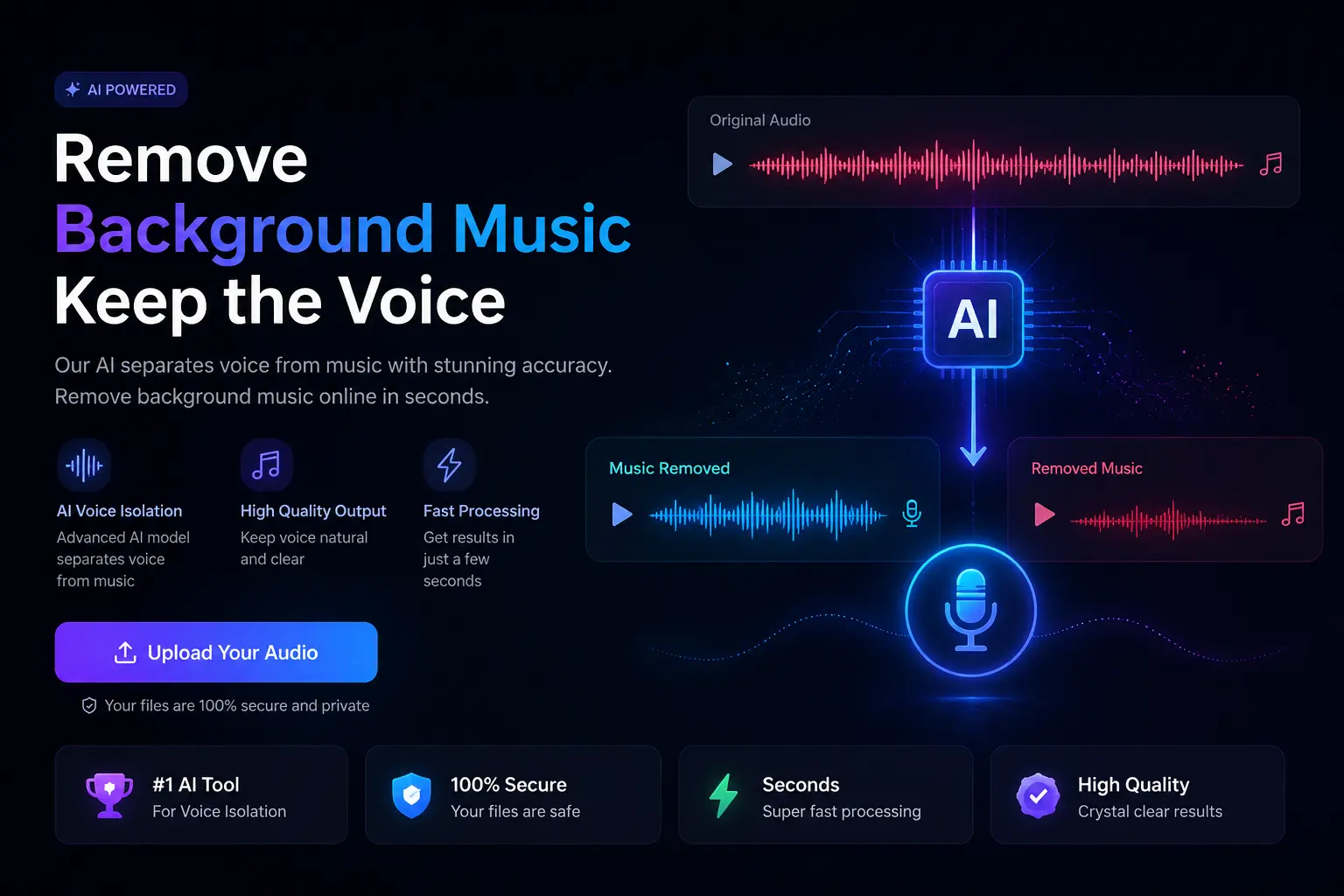
What Gets Removed?
When you remove background music, the AI targets every layer:
Your voice, breath, and natural tone stay intact. The music disappears.
Who Uses This Tool
Anyone who needs to remove background music from a recording will find a use case here.

Which Method Is Right for You
Not all music problems are the same. Here’s how to pick the right approach:

Quick Reference: Use Case Guide
Use Case | Noise Level | File Type | Best Method | Tool | Speed |
|---|---|---|---|---|---|
TV / radio bleed in background | Low | Any | Noise Reducer | Noise Reducer AI | < 1 min |
Café or restaurant music | Medium | MP3 / WAV | Noise Reducer | Noise Reducer AI | < 1 min |
Music playing in same room | High | Any | Source Separator | remove.music | < 1 min |
Event / DJ in outdoor video | High | MP4 / MOV | Source Separator | Noise Reducer AI | < 1 min |
Karaoke track from a song | N/A | MP3 / WAV | Vocal Remover | remove.music | < 1 min |
Remix — need vocals + instruments | N/A | MP3 / WAV | Stem Splitter | MVSEP / AudioEnh. | 1–3 min |
Broadcast interview with music bleed | High | WAV | Source Separator | MVSEP Ensemble | 2–5 min |
Audio before AI transcription | Any | Any | Noise Reducer | Noise Reducer AI | < 1 min |
Tips for the Best Results
Follow these tips for the best results when you remove background music from your file:
HQ Source
Use the highest quality source file you have — WAV or 320kbps MP3 gives the AI more to work with
No EQ or Compress
Do not equalize or compress before uploading — apply noise removal first, then edit
30 Second Test
Test a 30-second clip of your hardest section before running the full file
Original Video File
For video: upload the original file directly — no need to extract audio in a separate app
Post Removal Test
After music removal, run a second light pass (40–50% strength) for any harmonic residue
Pro Tip
For transcription: always clean audio before sending to a speech-to-text tool — accuracy improves dramatically
What to Expect on Difficult Files
When the music was playing louder than your voice, or you were standing directly next to speakers, some trace may remain. The AI will still improve it significantly — usually 80–90% cleaner — but a perfect result is not always possible in extreme cases.
For everything else — café background, event ambiance, TV bleed, store playlists — the result is typically clean enough that you cannot tell music was ever there.

What Our Users Are Saying
We’ve helped thousands of people improve their audio and video. Here’s what some of them had to say:
Filmed an interview at a pub and the background music nearly ruined the whole thing. Ran it through here and the music was just gone. My guest’s voice came through perfectly clean. Absolute lifesaver.

I record vlogs around London and there’s always music playing somewhere. Used to just bin the footage. Now I clean it up in seconds and the audio is usable every time.
We record client testimonial videos at our office and somehow music always bleeds in from the café downstairs. This tool strips it out cleanly every single time. Use it every week now.



How to Remove Background Music — 3 Steps
No software to install. Works on any device, any OS — just your browser.

Record or Upload Your Audio/Video
Upload your audio or video file (MP3, WAV, MP4, MOV and more — up to 900 MB)

Isolate and Remove
The AI separates your voice from the background music automatically

Download Your File
Preview the clean result and download in your preferred format
Ready to Clean Your Audio?
Ready to remove background music from your file? Upload your file above — free, no sign-up needed, results in under a minute.
MP3 · WAV · MP4 · MOV · and more · up to 900 MB

Noise Reducer AI is an AI-powered audio enhancement platform designed to remove background noise, improve voice clarity, and enhance sound quality. Built for creators, professionals, and everyday users, it offers a fast, free, and easy way to clean audio without technical complexity.
Frequently Asked Questions
Check out these frequently asked questions to find quick answers and helpful tips!