
Free AI Vocal Remover — Remove Vocals from Any Song Online
Want the backing track to a song that never got an official instrumental? Need a clean acapella to remix? Looking to practice singing without the original artist in your ear?
Upload your song. Our AI separates the vocals from everything else — drums, bass, guitar, piano — and gives you exactly what you need. Takes under a minute.
Hear the Difference with Noise Reducer
Drag and drop your audio/video files here
or click Upload File buttonWhat Is a Vocal Remover, Exactly?
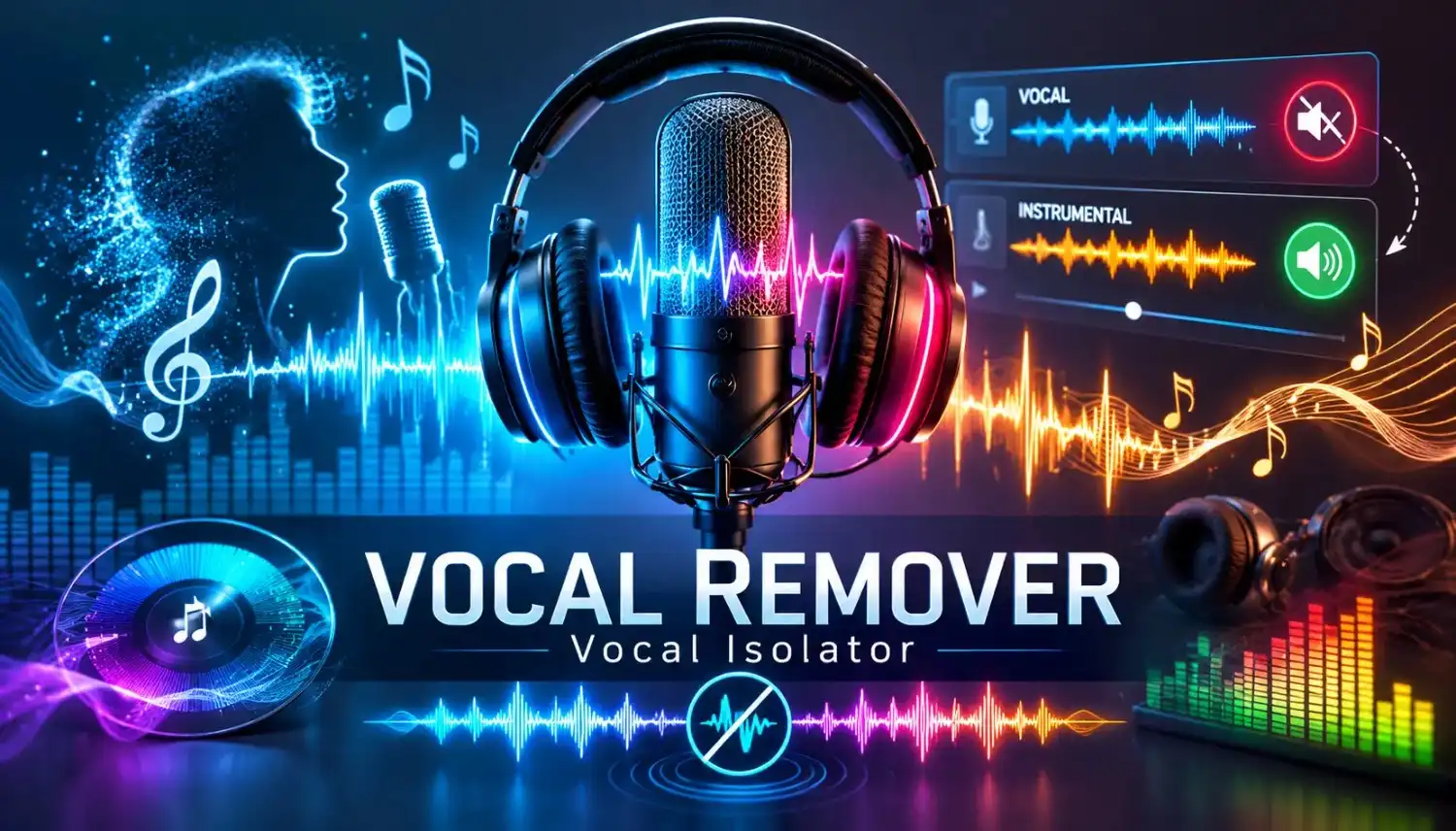
A vocal remover is a tool that separates a song into its different parts — then lets you pick what to keep and what to discard.
Ten years ago, this was done by cutting certain frequencies from the audio. It worked okay on simple recordings, but it always damaged the music too. The cymbals would disappear. The guitar would sound hollow. You’d fix one problem and create three others.
Today’s tools use a completely different approach. They use AI trained on thousands of songs to understand what a human voice looks like in audio — its timing, its tone, its patterns. Instead of cutting frequencies, the AI models each element of the song separately and reconstructs just the parts you want.
The result is a clean instrumental or a clean acapella — without the hollow, underwater sound that older tools used to leave behind.
Two Things You Can Get From One Song
Every upload gives you two separate outputs. Choose one or download both.
1. Instrumental (Vocals Removed)
This is the full backing track — drums, bass, guitar, piano, strings, everything — with the singing removed. It’s what most people are looking for.
Use it for karaoke, practice, content background music, or performing live without a band.
2. Isolated Vocals (Acapella)
This is the voice only. Every other instrument is removed, leaving just the singer. Use it for remixes, mashups, vocal sampling, or studying a singer’s phrasing and technique up close.
Who Uses a Vocal Remover?
The answer is: a lot more people than you’d expect. Here’s who and why.
Singers and Performers
You want to practice a song or perform it live, but there’s no official backing track. Maybe it’s a rare track. Maybe the karaoke version doesn’t exist. Maybe the karaoke version online sounds terrible.
Upload the original song. Remove the vocals. Now you have a proper studio-quality backing track you can sing over — with the real instruments, the real key, the real arrangement.
Music teachers use this constantly. They call it a minus-one track. Students practice with the real instrumentation instead of a watered-down MIDI version.
Musicians Learning Songs
Sometimes the best way to learn a song is to hear just the instrument you’re trying to copy. Remove everything except the bass and now you can study exactly what the bassist is doing. Isolate the guitar. Slow it down. Figure out the chord voicings.
Moises built their whole platform around this idea, and there’s a reason 70 million musicians use it. The isolated stem is a different kind of listening.
Remix Artists and Producers
Clean acapellas are hard to find officially. Most artists don’t release them. But if you have the original song, you can extract the vocals and use them as a sample.
Pitch-shift it. Time-stretch it. Layer it over a new beat. Build a mashup. That’s the remix workflow — and vocal isolation is step one.
DJs and Live Performers
DJs need clean instrumentals for mixing. They need acapellas to drop vocals over different tracks. Official releases rarely include both.
A DJ set is faster to build when you can generate your own stems from any song. Full stem splits — vocals, drums, bass, other — give you even more mixing flexibility.
Content Creators — YouTubers, TikTok, Reels
You want to use a popular song as background music in your video. But if you use the version with vocals, viewers hear lyrics competing with your voiceover. Or worse, you get a copyright claim.
Remove the vocals and use the instrumental. No lyrics over your narration. And depending on the platform’s Content ID system, removing the vocals also removes the fingerprint that triggers automated claims.
Karaoke Enthusiasts
The obvious one. Any song, instant karaoke version. No hunting through streaming apps for karaoke editions that may not exist. No low-quality fan-made versions. Upload the original and make your own.
The AI preserves the backing music properly — drums stay crisp, bass stays full, the stereo image stays wide. It doesn’t sound like something from a budget karaoke machine.
Podcasters and Video Creators (Background Music Removal)
This is slightly different from the music use cases above. If you recorded a podcast or a video and background music bled into it — from a TV, a café, a venue playing songs — the vocal remover works in reverse. It removes the music and keeps your voice.
The result is a clean voice recording, ready for editing and publishing. No music. No distraction.
What Gets Separated
Basic vocal removal splits a song into two tracks. Full stem splitting goes further.
Standard Vocal Removal (2 Tracks)
Full Stem Split (4–6 Tracks)
Quick Guide — What Mode to Use
Use Case | Best For | Karaoke | Full Stems | Video Files | No Sign-Up | Speed |
|---|---|---|---|---|---|---|
Karaoke — remove singer, keep music | Singers, performers | ✅ | ❌ | ✅ (MP4) | ✅ | < 1 min |
Acapella — keep voice, remove music | Remix artists, DJs | ❌ | ❌ | ✅ | ✅ | < 1 min |
Full stem split (4–6 tracks) | Producers, musicians | ✅ | ✅ | ✅ | ✅ | < 2 min |
Lead vs backing vocal split | Producers, mixers | ✅ | ✅ | ✅ | ✅ | < 2 min |
Background music removal from recording | Podcasters, vloggers | ❌ | ❌ | ✅ (MP4) | ✅ | < 1 min |
Cover song practice track | Vocalists, students | ✅ | ❌ | ✅ | ✅ | < 1 min |
DJ set / live performance | DJs, live performers | ✅ | ✅ | ❌ | ✅ | < 2 min |
Music learning — hear instruments | Students, teachers | ✅ | ✅ | ✅ | ✅ | < 2 min |
What Affects the Quality of Your Results
The AI does the heavy lifting. But a few things on your end make a real difference.
Source file quality: Use the highest bitrate version of the song you have. A 320kbps MP3 or a WAV file gives the AI more information to work with. A 128kbps MP3 has already lost audio data — the separation will work, but the output may sound slightly muddier.
Song genre and mix style: Cleanly produced pop and rock tracks separate beautifully. Songs where vocals are heavily layered, pitch-corrected, or blended into the production (some electronic music, certain hip-hop) are harder. The AI still separates them — it just may leave a faint trace.
Lead vs. background vocals: Lead vocals separate cleanly in most cases. Tight vocal harmonies sometimes bleed slightly into the instrumental, because they occupy similar frequencies to each other. For these tracks, use the Lead/Back split mode if available.
Live recordings vs. studio recordings: Studio recordings have cleaner separation. Live recordings have room reverb and bleed between microphones, which makes the AI’s job harder. Results are still good — just not as pristine as studio-quality source material.

Lead Vocals vs. Backing Vocals — Can You Separate Them Separately?
Yes. This is one of the less-known features of modern vocal separation tools.
Standard vocal removal takes out all vocals — lead singer and background harmonies together. But sometimes you want just the lead vocal removed while keeping the choir or harmonies in the instrumental. Or you want the backing vocals isolated on their own.
Lead/back splitting handles this. You get four outputs instead of two: lead vocal, backing vocals, instrumental, and instrumental with backing vocals included. Producers and mixers use this for detailed arrangement work.

Common Issues and How to Fix Them
I can still hear faint vocals in the instrumental
This is normal on some songs, especially those with heavy reverb on the vocals or tight vocal harmonies. A few things to try:
The output sounds slightly hollow or tinny
This usually happens with low-quality input files (128kbps or lower). The AI has less audio information to work with and the reconstruction sounds slightly thin. Use a higher bitrate source and the result will be noticeably better.
The audio and video are out of sync after processing
If you stripped audio from a video manually before uploading, re-attaching it can cause sync drift. Always upload the original video file directly — tools that support video handle the sync automatically.
Processing is very slow
Cloud-based tools like Noise Reducer AI process files on remote servers and typically finish in under 60 seconds. Browser-based tools that process locally on your device can take 5–30 minutes depending on your computer’s specs and whether your browser supports GPU acceleration.
Supported File Formats
You don’t need to convert your file before uploading. All common audio and video formats are accepted.
Audio: MP3, WAV, FLAC, M4A, AAC, OGG, AIFF, WMA, WEBM, OPUS
Video: MP4, MOV, MKV, AVI, WEBM, M4V, MPEG
Max file size: 500 MB – Max duration: 60 minutes
Tips for Better Results
Your Files Are Private
Your music is yours. We process files on secure servers and delete them automatically — typically within 30 minutes of processing. No one listens to your recordings. No files are stored beyond that window.
No account is needed to use the tool. Just upload and download.
What Our Users Are Saying
We’ve helped thousands of people improve their audio and video. Here’s what some of them had to say:
I needed a backing track for my audition and couldn’t find an official instrumental anywhere. Uploaded the song, had a clean karaoke version in under a minute. Honestly shocked at how good it sounded — the drums and bass stayed totally intact.

I produce remixes and finding clean acapellas is always a headache. This tool pulls the vocals out cleanly enough to actually use in a professional mix. Saved me hours of searching on forums.
Used it to make a karaoke version of my mom’s favorite song for her birthday party. No official karaoke track existed. Took two minutes and it sounded perfect. Everyone was impressed.



How to Remove Vocals — 3 Simple Steps
No software to install. Works on any device, any OS — just your browser.

Upload your Song
Upload your song — MP3, WAV, FLAC, M4A, or a video file (MP4, MOV). No account needed.

AI Vocal Isolator
The AI analyzes and separates the vocals from the instruments. This usually takes under 60 seconds.

Preview and Download
Preview both tracks — the instrumental and the isolated vocals — then download the one you need.
Ready to Clean Your Audio?
💡 Video files work too. Upload an MP4 and the tool processes the audio track directly. Your video quality stays untouched.
Supported: MP3 · WAV · FLAC · M4A · OGG · AAC · MP4 · MOV · MKV | Up to 500 MB
Noise Reducer AI is an AI-powered audio enhancement platform designed to remove background noise, improve voice clarity, and enhance sound quality. Built for creators, professionals, and everyday users, it offers a fast, free, and easy way to clean audio without technical complexity.
Frequently Asked Questions
Check out these frequently asked questions to find quick answers and helpful tips!